
Step 3: Review Bids & Choose Your Genie
Review Bids & Choose Your Genie
This guide shows you how to review all bids submitted by Genies, compare them, communicate with candidates, and hire the right one for your task.
1. Open the Task You Want to Review Bids from Genies
Go to your Task Board and look for your task under the Listed section.
Make sure the task has been moved out of Draft and into Listed, only Listed tasks can receive bids and show applicants.

Once your task is in Listed, click it to open the Task Page.
From there, you can review all applicants and their proposals/bids by selecting the Applicants tab at the top.
2. Click the “Applicants” Tab
Inside the task page, click Applicants.
This is where you’ll view all bids, proposals, and candidate information.

3. View the List of Applicants
In the Applicants tab, you’ll see:
- Genie name
- Skillsets
- Experience
- Rating
- Bid hours
- Buttons for messaging, profile, and bid proposal
The top candidates appear under Top Match.

4. Communicate With a Candidate (Optional)
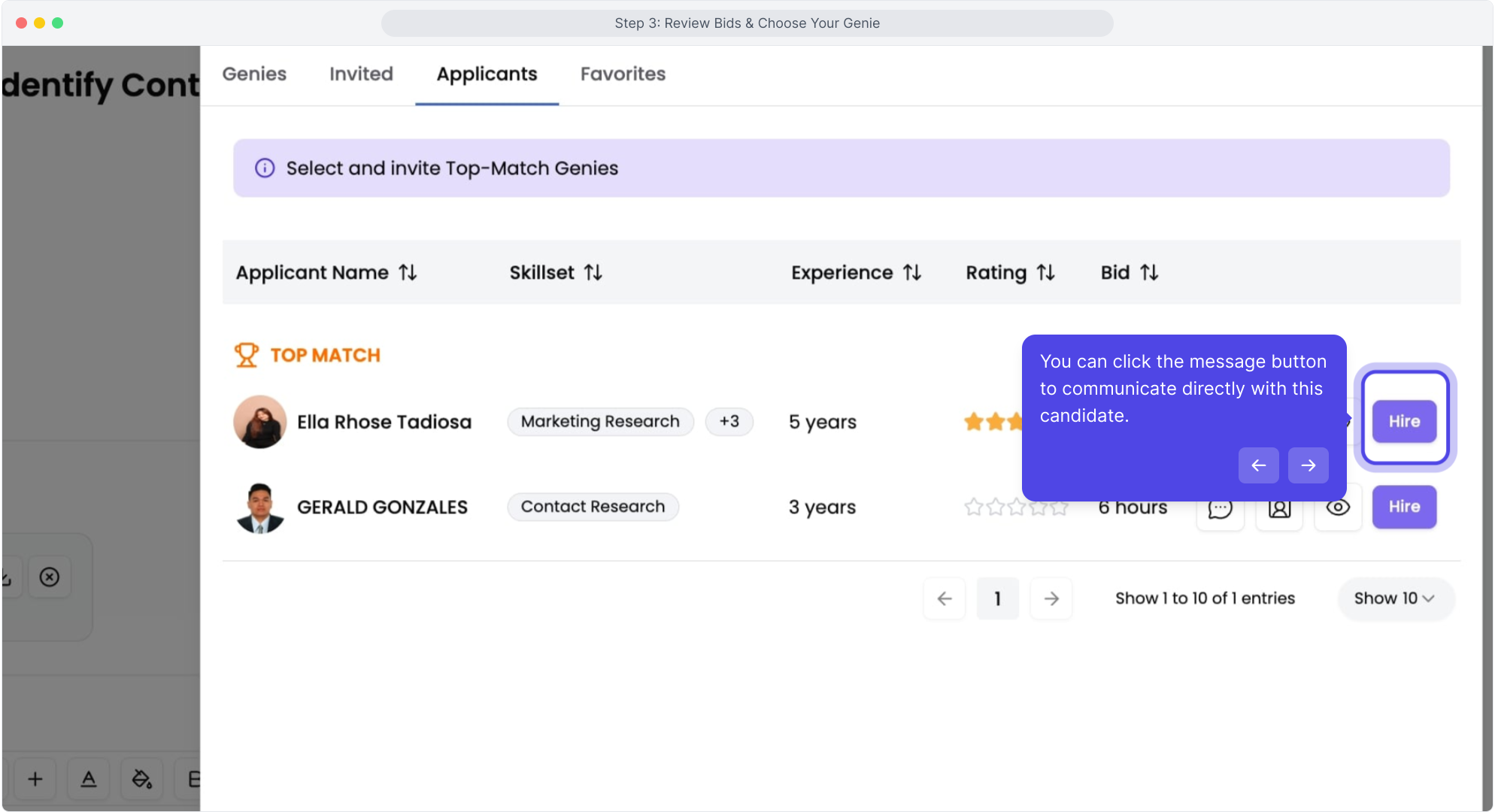
Click the message icon to chat directly with any Genie if you have questions or clarifications before hiring.

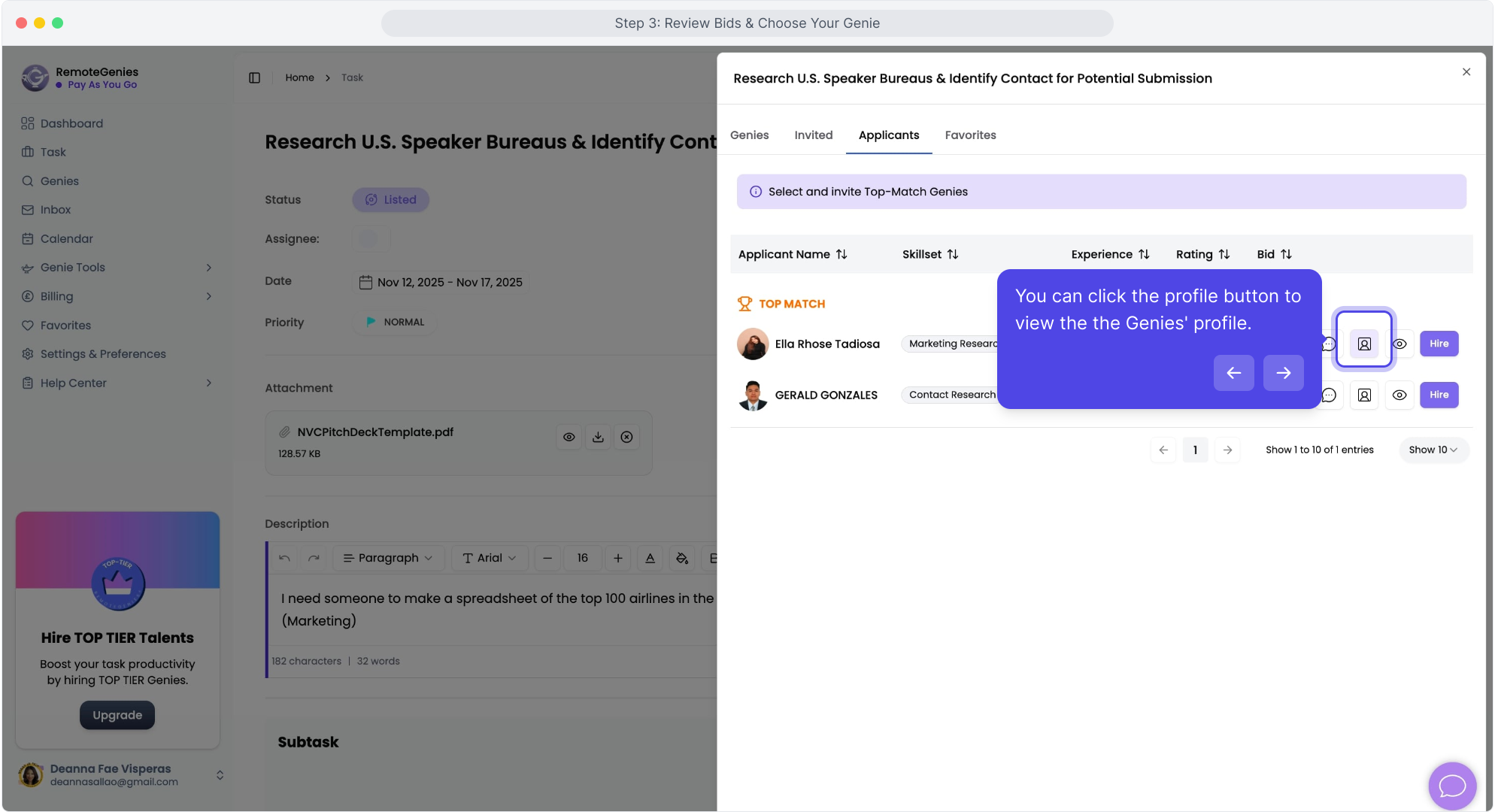
5. View the Genie’s Profile (Optional)
Click the profile icon to open the Genie’s full profile.
You’ll see:
- Full experience summary
- Skills
- Work history
-
Portfolio (if available)
6. View the Full Bid Proposal
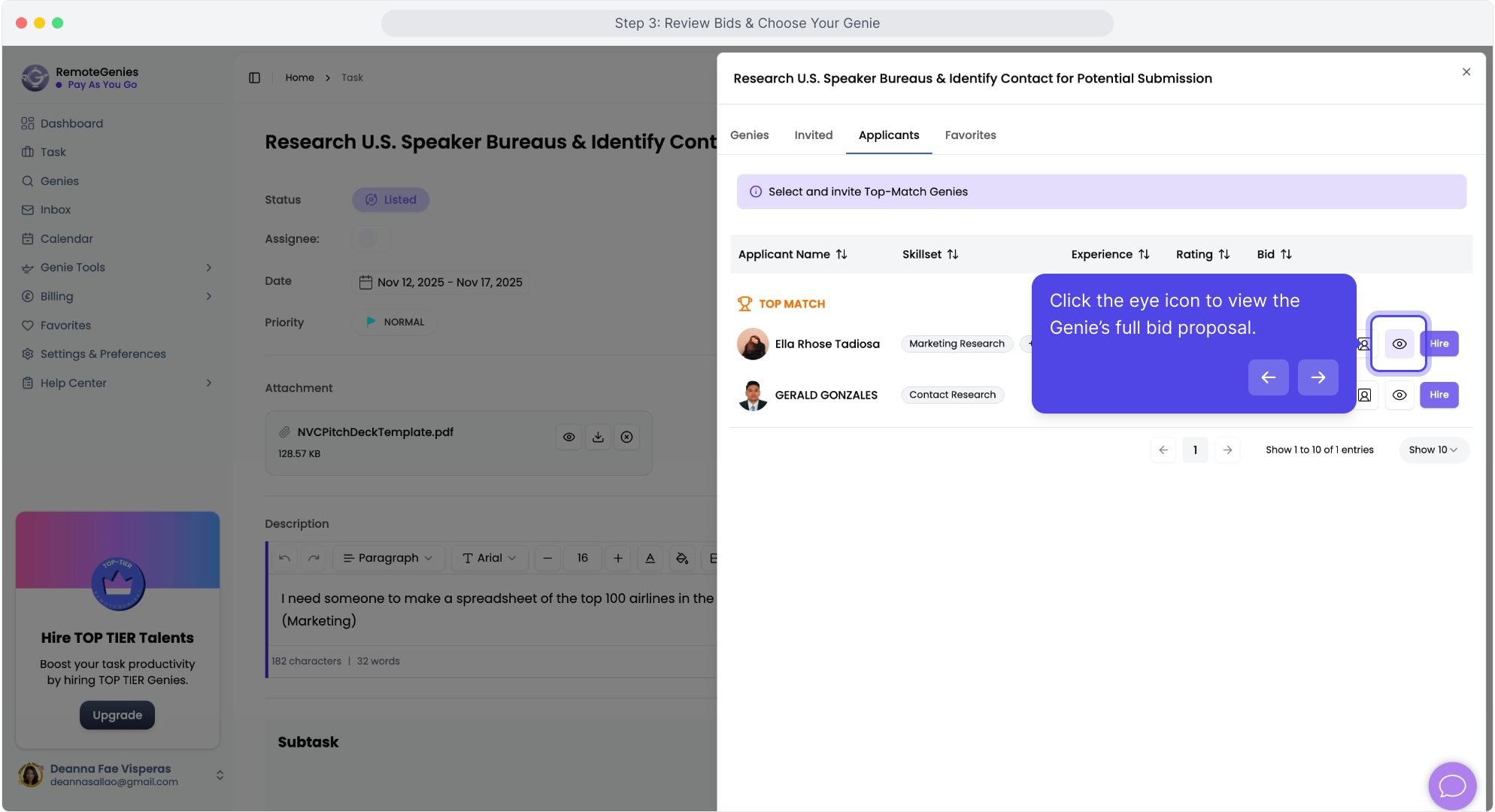
Click the eye icon to open the Genie’s detailed bid.
Here you’ll see:
- Their answer to “Why are you the right fit for this task?”
- Their estimated hours
- Skill tags
-
Portfolio attachments (if any)

7. Choose Your Genie
When you’re ready to hire:
-
Click the Hire button next to the Genie you want.
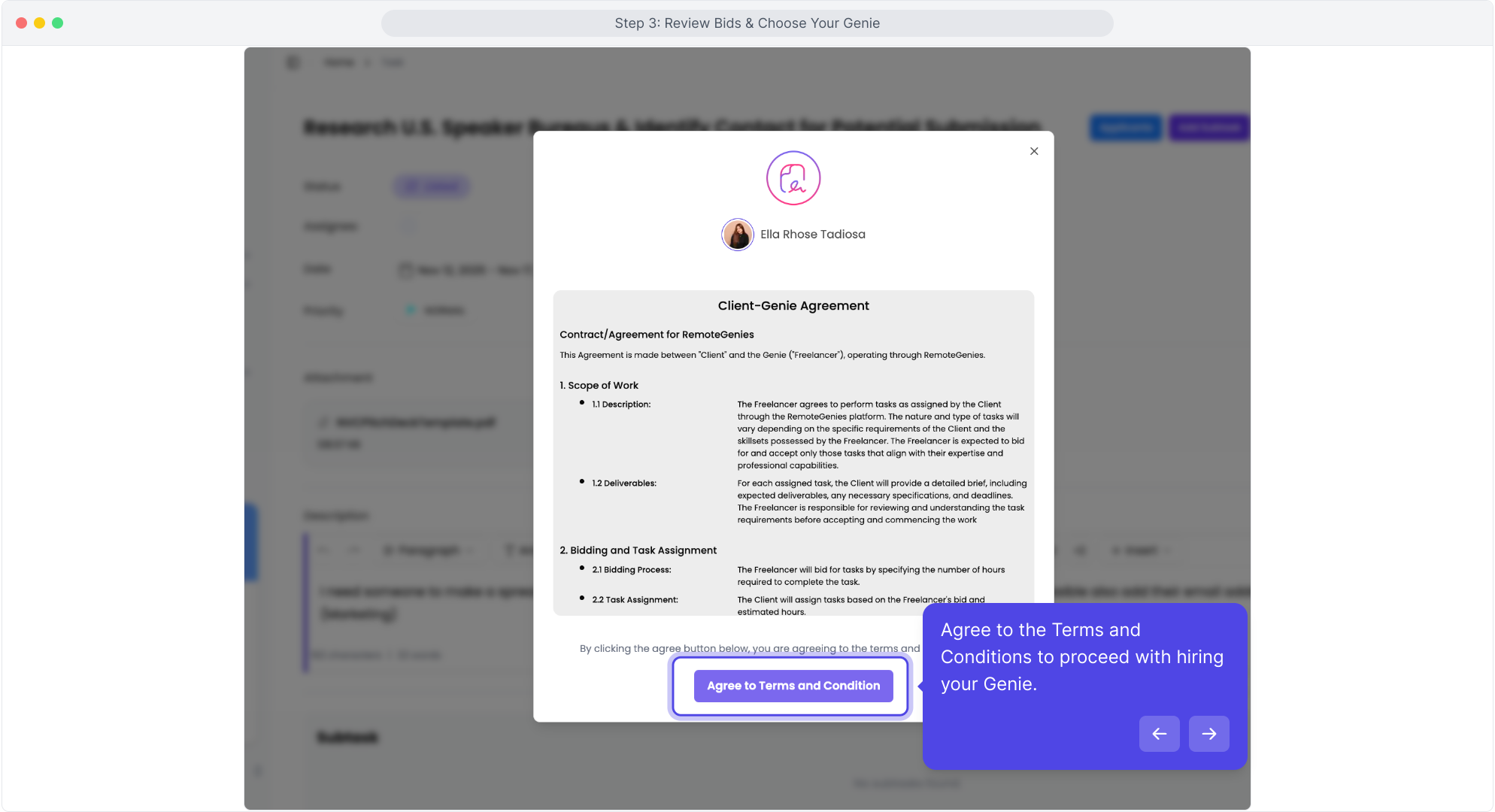
- A Client–Genie Agreement will pop up.
-
Review the agreement and click Agree to Terms and Conditions to proceed.
Once confirmed, the Genie becomes assigned to your task and can start working as soon as the task moves to the next stage.
WATCH FULL DEMO